Posted: September 27th, 2025
10 Best Tips for Making PowerPoint Presentations the WriteMastersPro Way in 2025

Table of Contents
Introduction
PowerPoint has become one of the most essential tools for students in schools, colleges, and universities. From class projects and group assignments to research defenses and seminar presentations, the ability to create an effective PowerPoint can significantly impact academic success. A well-structured and visually appealing presentation demonstrates not only your understanding of the subject but also your ability to communicate ideas clearly. On the other hand, a poorly designed PowerPoint—filled with long paragraphs, distracting animations, or cluttered slides—can weaken even the strongest content and leave your audience disengaged.
Learning how to write a PowerPoint the right way is about more than just adding text to slides. It requires planning, organization, and creativity. The goal is to simplify complex information, highlight the most important points, and support your spoken words with visuals that make the content memorable. Students often make the mistake of cramming too much information into each slide, but effective PowerPoint design follows the principle of “less is more.”
In this blog, we’ll guide you step by step on how to write and design a PowerPoint presentation that is professional, engaging, and impactful. Mastering these skills will not only impress your professors but also prepare you for future academic and career opportunities.
Would you like me to also create a PowerPoint slide design example (weak vs. strong slide) that you can use as a visual in the blog?
Why PowerPoint Matters for Students
For students, PowerPoint presentations are more than just a classroom requirement—they are a vital academic and professional skill. A PowerPoint presentation is not simply about filling slides with text; it is about communicating ideas in a clear, structured, and engaging way. Whether you are preparing a group project, defending your research, or delivering a seminar, your PowerPoint can determine how effectively your message is received.
A poorly written or poorly designed PowerPoint often weakens even the strongest research by overwhelming the audience with clutter or confusing layouts. In contrast, a well-prepared PowerPoint highlights your effort, knowledge, and professionalism, making your presentation more impactful. Professors and classmates expect slides that are concise, visually appealing, and easy to follow.
Here are key reasons why PowerPoint is important for students:
- It helps you structure ideas logically, ensuring your argument flows smoothly.
- Visuals such as charts, images, and diagrams make complex content easier to understand.
- Slides support your spoken words, keeping the audience engaged.
- A polished PowerPoint design reflects preparation, discipline, and effort.
Mastering PowerPoint allows students to stand out academically while also building presentation skills valuable for future careers.
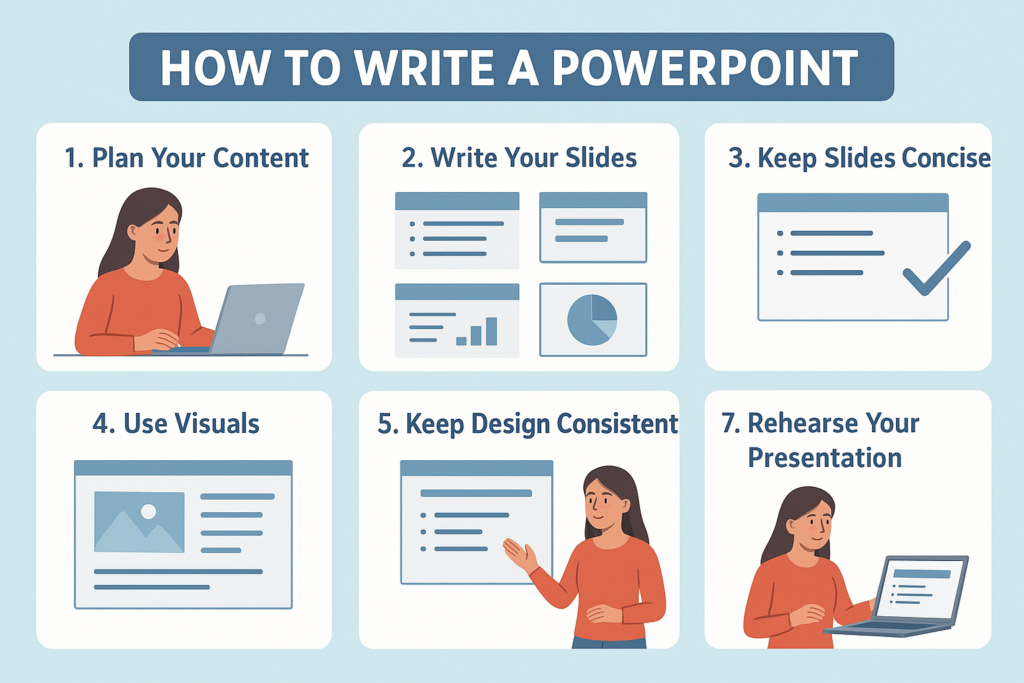
Step 1: Understand Your Purpose
The very first step in creating an effective PowerPoint presentation is to understand your purpose. Before you even open PowerPoint, pause and reflect on why you are preparing the presentation in the first place. Every strong presentation starts with a clear goal, and your slides should support that objective.
Ask yourself:
- What is the main goal of my presentation?
- Who is my audience—professors, classmates, or a general group?
- How much time do I have to present?
For instance, if you are preparing for a five-minute class presentation, you will not have the luxury of adding dozens of slides. Instead, you should aim for fewer slides with very simplified content that communicates your main ideas quickly. On the other hand, if you are defending a 20-minute research project, your PowerPoint will require more detailed slides, data charts, and structured explanations.
Understanding your purpose helps you adjust your slide count, writing style, and level of detail. It also ensures that your PowerPoint supports—not distracts from—your speech. A well-defined purpose is the foundation of a professional presentation.
Step 2: Plan Your Content Before Writing in PowerPoint
One of the most common mistakes students make is jumping straight into PowerPoint and typing random information without any plan. While the software is easy to use, the real challenge is not designing the slides but structuring your ideas. To avoid confusion and clutter, you should plan your content before you start writing inside PowerPoint.
Here’s how to plan effectively:
- Outline your main points on paper or in a Word document. Think of the big picture: what do you want your audience to learn?
- Decide what belongs on the slides and what should be explained verbally. Remember that your PowerPoint should support your talk, not replace it.
- Break your content into clear sections such as Introduction, Main Points, and Conclusion.
One of the best strategies to follow is the “one slide = one idea” rule. This keeps your presentation focused and prevents you from overwhelming your audience with too much text or data on a single slide.
For example, if you are presenting on climate change, don’t cram causes, effects, and solutions into one slide. Instead, dedicate separate slides to each part. This simple planning step will make your PowerPoint cleaner, easier to follow, and far more effective.
Step 3: Writing the Content for Your PowerPoint
Once you have a plan, it’s time to actually write your slides. Writing for PowerPoint is very different from writing essays or reports. An essay allows you to use paragraphs and long explanations, but a PowerPoint presentation demands clarity, brevity, and visual appeal.
Here are some practical tips for writing effective PowerPoint slides:
- Use bullet points instead of full paragraphs.
- Limit each slide to 5–6 lines of text maximum so the audience can read easily.
- Highlight important keywords by bolding, italicizing, or using a different color.
- Keep your language simple and direct. Avoid jargon unless your audience is highly specialized.
Let’s compare a weak slide with an improved one:
Weak slide:
“Global warming is a serious issue that is caused by human activities such as burning fossil fuels, deforestation, and industrial processes. It leads to rising global temperatures, melting ice caps, and increased natural disasters.”
This slide has too much text, making it difficult for the audience to read quickly.
Improved PowerPoint slide:
- Global warming = human-caused
- Main causes: fossil fuels, deforestation, industry
- Effects: higher temperatures, melting ice, disasters
Writing for PowerPoint is not about copying your essay into slides. It’s about extracting the most important information and presenting it in a way that supports your verbal delivery. By writing less text and focusing on visuals and keywords, your PowerPoint will engage your audience better and leave a stronger impact.
Step 4: Design Like a Pro
PowerPoint design can truly make or break your presentation. Even if you have well-researched content, a poorly designed PowerPoint can distract your audience and reduce the impact of your message. On the other hand, a clean, professional-looking design ensures that your audience stays focused and engaged. Students should always remember that design is not about making slides flashy—it is about making them clear, accessible, and supportive of your spoken words.
When designing your PowerPoint, consistency is key. Choose a simple theme that aligns with your topic. Overly complex or colorful templates may look appealing at first, but they can easily become distracting. Instead, pick a clean design and stick with it throughout the presentation. This creates a sense of flow and professionalism that your audience will appreciate.
Color choices matter a lot in PowerPoint design. Always use contrasting colors for text and background. For example, black or dark blue text on a white background is much easier to read than light yellow text on a pale background. Strong contrast ensures that your message is visible even to those sitting at the back of the room.
Fonts also play an important role. Limit yourself to one or two fonts throughout the entire PowerPoint. Mixing too many fonts creates visual chaos. A good combination is using a bold sans-serif font for headings and a clean serif or sans-serif font for body text. Remember that clarity always comes before creativity when it comes to fonts.
Another crucial element is font size. PowerPoint presentations are meant to be seen by an audience, not read like a book. That means your text should be large enough for everyone in the room to see. A minimum of 24pt is recommended for body text, while headings should be even larger. Avoid squeezing too much text onto one slide—spread your content across multiple slides if necessary.
Finally, avoid clutter and over-decoration. Too many shapes, bright borders, or distracting backgrounds will only shift focus away from your message. A professional PowerPoint relies on simplicity. Think of your slides as support material rather than the main event. You are the presenter; the PowerPoint is there to back you up, not replace your voice.
Step 5: Add Visuals and Multimedia
Start with images that are relevant to your content. For example, if you are talking about climate change, a photo of melting glaciers or extreme weather can have a stronger emotional impact than words alone. Graphs and infographics are also powerful tools. Instead of listing numbers in bullet points, present your data as a bar chart, pie chart, or infographic. This makes complex information easier to understand at a glance.
Icons can also replace words effectively. For instance, instead of writing “time management” in text form, you could use a simple clock icon alongside a short keyword. These small visuals break monotony and add clarity.
Students can also use short videos or audio clips when appropriate. For example, in a history presentation, a short video clip from a documentary can make the topic come alive. However, it’s important to keep multimedia short and to the point. If it doesn’t directly support your message, leave it out.
Animations and transitions are another tool that should be used wisely. PowerPoint offers countless flashy effects, but overusing them makes your presentation look unprofessional. Instead, use subtle transitions to guide your audience from one slide to the next. The golden rule is: animations should enhance, not distract.
Consider this example: instead of showing a slide with five lines of statistical data, present it as a bar graph. Not only does this make the information more visually appealing, but it also allows your audience to absorb the data faster. This is the difference between an average PowerPoint and an outstanding one.
Step 6: Practice with Speaker Notes
One of the most common mistakes students make is writing full paragraphs on their slides and then reading directly from them. This weakens the presentation because it signals to the audience that the speaker is not confident or prepared. A professional presenter, however, uses speaker notes to stay organized while keeping the slides clean and concise.
PowerPoint allows you to add notes below each slide, visible only to you while presenting. These notes can include extra details, examples, or transitions you want to remember during your talk. By doing this, you ensure that your slides only contain key points while the deeper explanation comes from you.
The benefits of using speaker notes are significant:
- Prevents memorization stress – You don’t have to remember everything word-for-word.
- Helps you stay on track – Notes remind you of your structure and flow.
- Keeps slides clutter-free – Instead of cramming paragraphs on slides, you move explanations to your notes.
For example, instead of filling a slide with a long definition, you can put the keyword on the slide and keep the full explanation in your notes. This approach keeps the audience’s attention on you, the speaker, while ensuring you still cover all necessary details.
Practicing with speaker notes also builds confidence. By rehearsing with them, you become familiar with your content and avoid sounding like you’re reading from a script. Ultimately, a PowerPoint is not meant to be your script—it is a tool that supports your delivery.
Step 7: Rehearse Your Presentation
A PowerPoint presentation is only as strong as the person delivering it. While a beautifully designed slide deck can capture attention, the true impact lies in how you communicate your message. This is why rehearsal is such a crucial step in preparing for any presentation. Practicing not only helps you refine your flow but also boosts your confidence, ensuring that your delivery is polished and professional.
Many students mistakenly believe that preparing the slides is enough, but your slides are only supporting tools. The real value comes from your spoken words, your body language, and how you interact with your audience. By rehearsing, you develop a natural rhythm, minimize nervousness, and learn how to stay within the time limits set by your professor or event organizer.
Practice Tips for PowerPoint Presentations
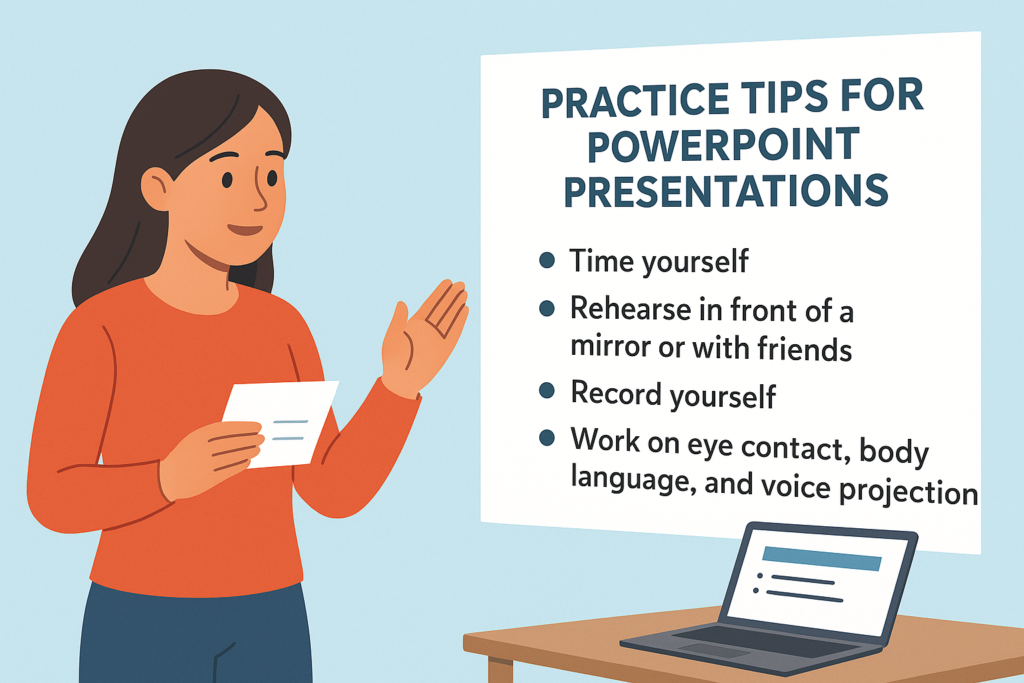
- Time Yourself: One of the easiest mistakes students make is speaking too quickly or running out of time. When rehearsing, use a stopwatch or PowerPoint’s built-in timer to measure how long you take per slide. Aim to stay within your allotted time while leaving room for questions.
- Rehearse in Front of a Mirror or with Friends: Presenting to yourself in a mirror helps you monitor facial expressions and gestures. Practicing with friends allows you to receive constructive feedback and simulate real audience reactions.
- Record Yourself: Recording your rehearsal on your phone or laptop gives you the chance to hear your tone, pacing, and clarity. Watching yourself on video may feel uncomfortable at first, but it is one of the best ways to catch distracting habits, such as fidgeting or overusing filler words like “um.”
- Focus on Nonverbal Communication: PowerPoint presentations rely heavily on your presence. Work on maintaining good eye contact, standing tall, and using open gestures. Avoid crossing your arms or turning your back to the audience while speaking.
- Use Speaker Notes Effectively: PowerPoint allows you to add notes below each slide. Use these notes as prompts rather than full scripts. This prevents you from reading word-for-word and ensures your delivery feels natural.
When you rehearse thoroughly, you minimize anxiety and maximize impact. Audiences are far more likely to remember how confident and engaging you appeared rather than every single detail of your slides.
Common Mistakes Students Should Avoid
Even with preparation, many students unknowingly weaken their presentations by making common errors. Recognizing and avoiding these mistakes will instantly improve your PowerPoint performance.
- Overloading Slides with Text – Your slides should complement your speech, not replace it. Filling slides with paragraphs makes them unreadable and tempts you to read directly from the screen.
- Using Too Many Animations – While PowerPoint offers endless transitions and effects, overusing them can distract your audience. Stick to simple fades or wipes that support your message rather than overshadowing it.
- Poor Color Contrast – Always make sure your text is visible. Dark text on a light background or vice versa works best. Avoid combinations like yellow text on white or red text on black, which strain the eyes.
- Reading Word-for-Word from Slides – This makes you appear unprepared. Instead, write bullet points and expand verbally during your delivery.
- Cluttered Slides – Cramming too many graphs, images, or sentences onto one slide confuses your audience. Remember the golden rule: one slide = one main idea.
Avoiding these pitfalls allows your PowerPoint to look professional, polished, and effective.
Why Writing a Good PowerPoint Matters for Academic Success
In schools and universities, PowerPoint presentations often carry significant weight in your grades. A strong presentation demonstrates more than just your knowledge—it reflects your communication skills, organizational ability, and professionalism. Professors appreciate when students put effort into creating slides that are clear and engaging.
Beyond academics, mastering PowerPoint is a life skill. In job interviews, workplace meetings, and business pitches, the ability to create and present a compelling PowerPoint can set you apart. Employers value candidates who can explain ideas visually and verbally in a way that inspires confidence.
Benefits of Good PowerPoint Writing for Students
- Organizes Complex Ideas Clearly: Breaking down topics into structured slides makes information easier to digest.
- Improves Communication Confidence: Presenting with a well-prepared PowerPoint builds your self-assurance.
- Enhances Visual Understanding: Graphs, charts, and images allow your audience to grasp concepts quickly.
- Prepares You for Professional Success: The skills you gain now will benefit your career in the long term.
Ultimately, writing and presenting a good PowerPoint is not just about grades—it’s about building confidence, professionalism, and communication skills you’ll use for years to come.
Final Tips for Students Writing PowerPoints
To help you polish your presentation skills, here are some final tips:
- Start with an Outline: Before even opening PowerPoint, jot down your ideas on paper. This prevents you from wandering off-topic.
- Keep Slides Short and Clear: Limit text to keywords and bullet points. Your voice should provide the details.
- Use Visuals Wisely: Images, charts, and infographics make complex ideas easier to understand.
- Practice Your Delivery: Rehearsing ensures that you sound confident and stay within your time limit.
- Proofread Everything: Spelling or grammar mistakes on slides can hurt your credibility. Always double-check your work.
Conclusion
PowerPoint is much more than a slide-making tool—it’s a powerful way for students to showcase their knowledge, creativity, and communication skills. By rehearsing your presentation, avoiding common mistakes, and focusing on clear writing and visuals, you can turn an ordinary slideshow into a professional presentation that leaves a lasting impression.
The goal of PowerPoint is simple: to support your message, not replace it. Keep your slides clean, make your delivery engaging, and always focus on your audience. If you master these techniques, you won’t just get better grades—you’ll also gain skills that will help you succeed in your future career.
So next time you sit down to prepare for class, remember: plan carefully, write effectively, rehearse thoroughly, and present confidently. That’s the key to making PowerPoint presentations the right way.

Expert paper writers are just a few clicks away
Place an order in 3 easy steps. Takes less than 5 mins.